System Setup
Please finish these five setups before the workshop so we can spend our time building. It should take about twenty minutes in total.
Click on each setup below to open its instructions. If you get stuck at any point, tell me and we will sort it out.
1Open tldrawThe whiteboard you will use to draw your problem's flow diagramShow stepsHide steps
- Open tldraw.com in your browser. It works right away, and you do not need to create an account.
- You will use it during the workshop to draw a flow diagram of your team's problem. It should show the steps from the moment the problem starts to the moment it is solved.
- Try it now so it feels familiar. Draw a few boxes, connect them with arrows, and add text inside them.
- Decide as a team who will draw, so that everyone can share ideas while one person keeps the diagram tidy.
2Set up ClaudeAdd the Grill Me skill to your claude.ai accountShow stepsHide steps
- Download the Grill Me skill zip file from Google Drive and save it on your computer. Do not unzip it.
- Sign in at claude.ai. If you do not have an account yet, create one first. Then open Settings from your profile menu.
- Go to Capabilities and make sure Cloud code execution and file creation is turned on. Skills need this to work.
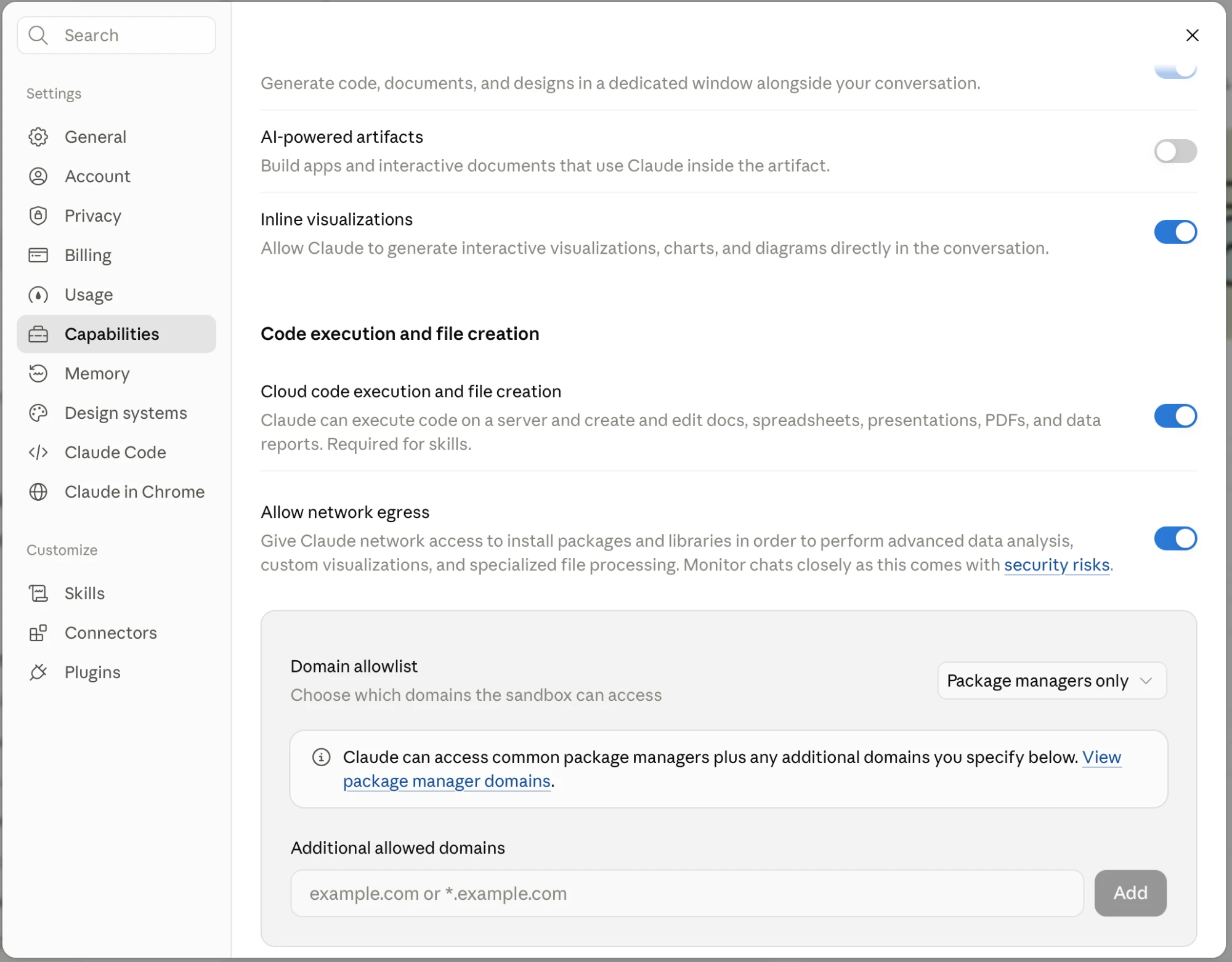
- In the left sidebar under Customize, click Skills, then choose the option to upload a skill.
- Choose the zip file you downloaded. Claude will add the Grill Me skill to your account and show it in the list.
- Turn the skill on with its toggle. Start a new chat and ask Claude to grill you on an idea, to check that it works.
3Set up GitHubCreate your account, and one repository per teamShow stepsHide steps
- Go to github.com and create an account. Use an email address you check often, and verify it when GitHub sends you a confirmation.
- Choose a simple username and note it down. You will use the same GitHub account to sign in to Backgrounder, and your teammates will need your username to add you.
- Agree within your team on one person who will create the repository. Each team needs exactly one repository for its project.
- That person clicks the + icon at the top right of GitHub, then New repository. Give it a clear name, for example the name of your project, and click Create repository.
- In the new repository, open Settings, then Collaborators, and click Add people. Add every teammate by their GitHub username.
- Each teammate opens the invitation from their email, or from the notifications on GitHub, and accepts it. Once accepted, everyone on the team can work in the same repository.
4Set up BackgrounderSign in with GitHub and give it access to your project repositoryShow stepsHide steps
- Go to backgrounder.dev and create an account using your GitHub account, so it is linked to the same GitHub ID you set up above.
- When Backgrounder asks for permission to connect to GitHub, review what it asks for and approve it.
- Give Backgrounder access to your team's project repository, the one you created in the GitHub step. Do not give it access to repositories that are not part of the workshop.
- Check that your project repository now shows up inside Backgrounder. If it does not, go back and check that you have accepted the collaborator invitation on GitHub.
5Get an LLM API keyCreate a Gemini API key in Google AI StudioShow stepsHide steps
- Go to Google AI Studio and sign in with your Google account.
- If AI Studio asks you to accept its terms of service, read them and accept to continue.
- On the API keys page, click Create API key.
- If it asks you to choose a project, pick an existing one or create a new project, then confirm.
- Copy the key and save it somewhere safe on your computer, such as a private note. You will need it during the workshop.
- Keep the key private. Do not share it, and do not put it in your GitHub repository or in any chat, because anyone who has it can use your account's quota.